Want to keep your WhatsApp chats private without deleting them? Whether it’s personal conversations, work chats, or important messages, many users look for ways to hide WhatsApp chats secretly without losing them.
The good news is that WhatsApp now offers privacy features that help users protect chats more securely without needing to delete or permanently archive conversations.
Why People Hide WhatsApp Chats
Users often hide chats to:
- Protect personal privacy
- Keep important conversations safe
- Avoid accidental access by others
- Organize WhatsApp better
- Hide sensitive work or personal chats
Instead of deleting messages, hidden chats allow users to keep conversations secure while still accessible when needed.
Method 1: Use WhatsApp Chat Lock Feature

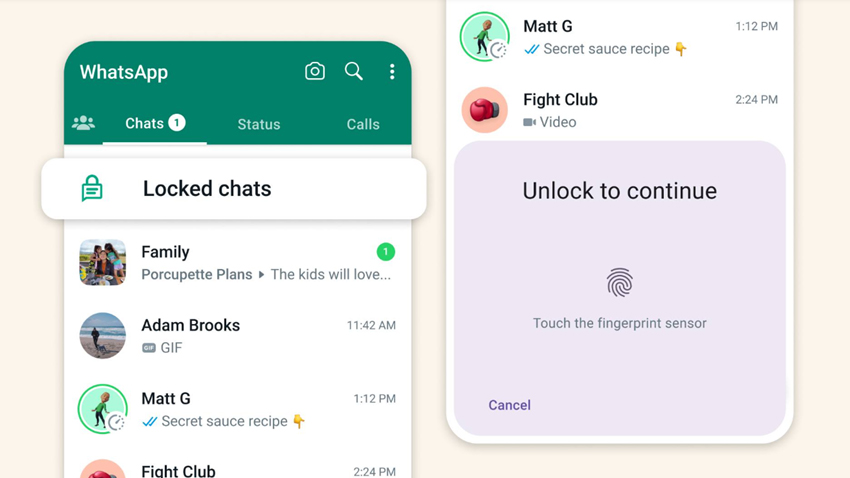
One of the safest ways to hide chats is by using WhatsApp’s built-in Chat Lock feature.
This feature locks selected chats using:
- Fingerprint
- Face Unlock
- Device password
Once enabled, locked chats move to a separate protected folder inside WhatsApp.
How to Lock a WhatsApp Chat
- Open WhatsApp
- Open the chat you want to hide
- Tap the contact or group name
- Select Chat Lock
- Turn on Lock This Chat with Fingerprint or Face ID
Your chat will now move to the Locked Chats section.
Method 2: Hide Locked Chats Secretly
WhatsApp also allows users to hide the Locked Chats folder itself for extra privacy.
This means the folder won’t appear directly on the chat screen.
How to Hide Locked Chats
- Open WhatsApp
- Go to Locked Chats
- Open Chat Lock Settings
- Enable Secret Code (if available on your version)
You can then access hidden chats only by:
- Entering the secret code
- Searching the code in WhatsApp search bar
This adds an extra layer of privacy.
Method 3: Turn Off Chat Notifications
Even hidden chats can show notifications on the lock screen.
To improve privacy:
- Mute the chat
- Disable message previews
- Hide sensitive notifications
Steps
- Open the chat
- Tap Mute Notifications
- Turn off Show Notifications if required
This prevents others from seeing incoming messages.
Method 4: Use Fingerprint Lock for WhatsApp
)
For complete WhatsApp privacy, you can lock the entire app.
How to Enable WhatsApp Fingerprint Lock
- Open WhatsApp
- Go to Settings
- Tap Privacy
- Scroll down to App Lock
- Enable Unlock with Fingerprint
Now WhatsApp can only be opened using your fingerprint or face unlock.
Things to Remember
While hiding chats:
- Don’t share your fingerprint or lock code
- Keep WhatsApp updated
- Use strong device security
- Avoid third-party “chat hiding” apps
Using official WhatsApp privacy features is safer and more secure.
Common Reasons Chat Lock May Not Work
Sometimes users may face issues like:
- Chat Lock option missing
- Fingerprint not working
- Locked chats not appearing
This can happen due to:
- Outdated WhatsApp version
- Software bugs
- Device compatibility issues
Updating WhatsApp and your phone software usually helps fix these problems.
Need Smartphone or WhatsApp Support?
If your smartphone has issues like:
- WhatsApp crashing
- Fingerprint not working
- App lock issues
- Software problems
Carlcare Service can help with professional device support and troubleshooting.
📞 Contact Us: 1800-4190-525
📍 Find a Service Center:
https://www.carlcare.in/in/service-center/
📅 Book a Repair:
https://www.carlcare.in/in/repair-appointment/
T&C Apply